
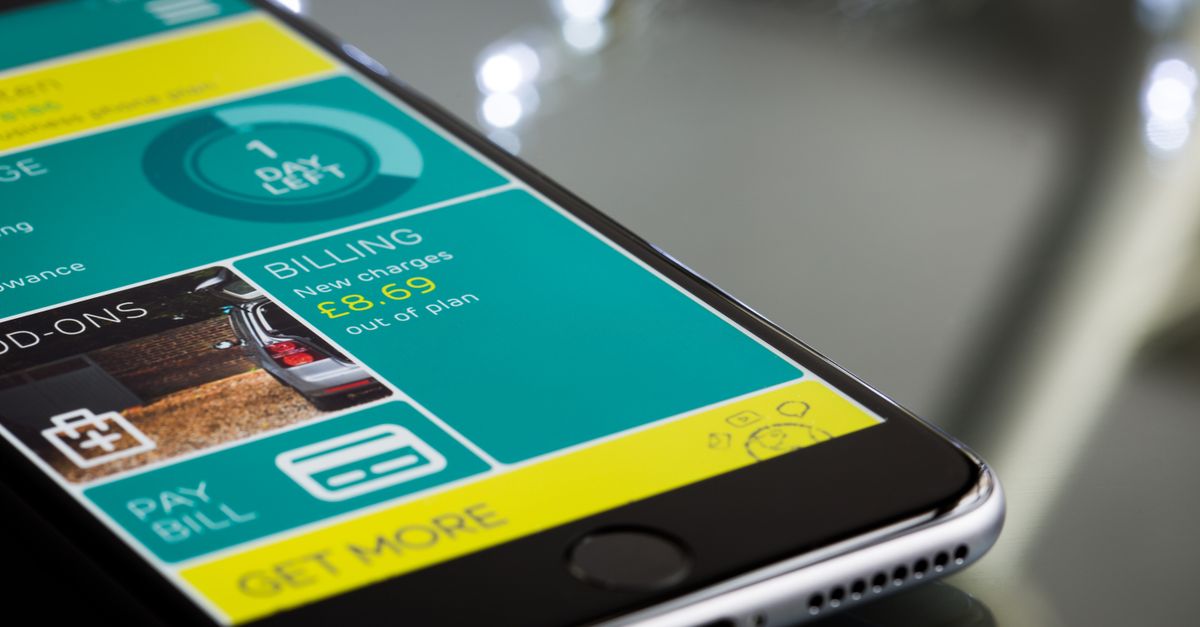
Most of the data a phone burns through on holiday isn't spent on anything you chose to do. It goes on photo uploads you forgot were running, apps quietly updating themselves and videos that start playing as you scroll past them. Deal with those hidden habits and even a modest travel plan goes much further, without you having to ration maps or messages.
The fifteen tips below are grouped by when to do them: at home before you leave, in your phone's settings, inside the apps that use the most, and during the trip itself.
Before you leave: jobs to finish on home Wi-Fi
1. Update everything before departure
System updates and large app updates are among the biggest downloads a phone ever makes. Install them at home in the days before you travel, so nothing heavy is queued up and waiting for the moment you land.
2. Set app updates to Wi-Fi only
In the App Store or Google Play settings, make sure automatic updates only happen on Wi-Fi (on iPhone, switch off automatic downloads over mobile data). Your apps still update, just at the hotel rather than on your travel plan.
3. Pause cloud photo backup on mobile data
Holiday photos and videos are exactly what your backup app wants to upload, and video files are large. Set iCloud Photos, Google Photos or whichever service you use to back up over Wi-Fi only, then let it catch up each evening.
4. Download offline maps for every stop
An offline map of each city or region you'll visit keeps the map, your saved places and, in many apps, directions working with little or no data. It's also a reassuring backup if you arrive somewhere with a weak signal.
5. Fill your phone with music, podcasts and shows
Streaming on the move is one of the quickest ways to empty a plan. Download playlists, podcast episodes and a few episodes of whatever you're watching while you're still on home Wi-Fi.
Get your Thailand eSIM in 30 seconds
Instant delivery, 4G/5G speeds, no roaming bills.
Switch on your phone's own data savers
6. Turn on Low Data Mode or Data Saver
On iPhone, go to Settings → Mobile Data, tap your travel line and look for Low Data Mode (under Data Mode or Mobile Data Options, depending on your iOS version). It pauses background tasks such as automatic updates and photo syncing, and asks apps to use less. On Android the equivalent is usually called Data Saver, found under Network & internet on a Pixel or Connections → Data usage on a Samsung; the wording varies by brand.
7. Cut off apps that have no business using data
Scroll down the Mobile Data screen on iPhone and you'll see every app with its own switch. Turn off anything that doesn't need to work away from Wi-Fi, such as games, shopping apps or a second email account. On Android, open an app's info page, choose Mobile data and turn off background data for it.
8. Stop the phone covering for weak Wi-Fi
When hotel Wi-Fi struggles, phones can quietly switch to mobile data to keep pages loading. On iPhone this is Wi-Fi Assist, at the bottom of the Mobile Data screen; Android phones have similar options, often called adaptive Wi-Fi or switch to mobile data. Turning it off keeps you in charge of when your plan is used.
9. Limit background refresh
Apps refresh feeds, inboxes and widgets even when you're not looking at them. On iPhone, Settings → General → Background App Refresh can be set to Wi-Fi only. On Android, the Data Saver from tip 6 already restricts most background activity.
Tame the hungriest apps
10. Turn off autoplay in social apps
Feeds that start videos as you scroll are a classic drain. Most social apps have a setting to autoplay only on Wi-Fi, or a data saver mode that loads lighter images and video.
11. Lower streaming quality
If you do stream on mobile data, set video to standard or low quality and choose normal rather than high-quality audio in music apps. On a phone screen the difference in picture is far smaller than the difference in data.
12. Stop automatic media downloads in messaging apps
Group chats fill up with photos, voice notes and clips. In WhatsApp (Settings → Storage and Data → Media auto-download) and similar apps, set media to download on Wi-Fi only, then tap the files you actually want to open.
13. Choose voice over video when it's just a check-in
A video call uses far more data than a voice call in the same app. When you only need to say you've arrived safely, a voice call or voice note does the job; keep long video calls for decent Wi-Fi.
During the trip: use Wi-Fi wisely and keep count
14. Save heavy jobs for Wi-Fi, but not your banking
Big uploads, downloads for the next day and long video calls belong on hotel or apartment Wi-Fi. For banking, payments and signing in to important accounts, though, your own mobile data connection is usually a safer choice than an open public network. That's data well spent.
15. Watch your usage and top up before you run dry
Reset your phone's data counter when you land (on iPhone, Reset Statistics sits at the bottom of the Mobile Data screen) so you can see exactly what the trip has used. With HelloSIM you can also check your remaining data in your account or in the app. If you need more, a top-up goes onto the same eSIM, so there's no new QR code and nothing to reinstall.
How much data should you plan for anyway?
Saving data works best alongside a sensibly sized plan. As a rough guide, light use, meaning maps and messaging, comes to about 1 GB a week; regular use with social media and browsing is more like 3–5 GB a week; and heavy use with video, video calls or work can reach 10 GB a week or more. If these tips move you down a category, you can start smaller and add data only if the trip demands it.
HelloSIM has plans for single countries, for regions and a Global plan for trips that cross several regions, so you can match the plan to the route as well as to your habits.
Get your Europe eSIM in 30 seconds
Instant delivery, 4G/5G speeds, no roaming bills.
If you're covering several regions on one trip, one eSIM can go with you the whole way.
Get your Global eSIM in 30 seconds
Instant delivery, 4G/5G speeds, no roaming bills.