
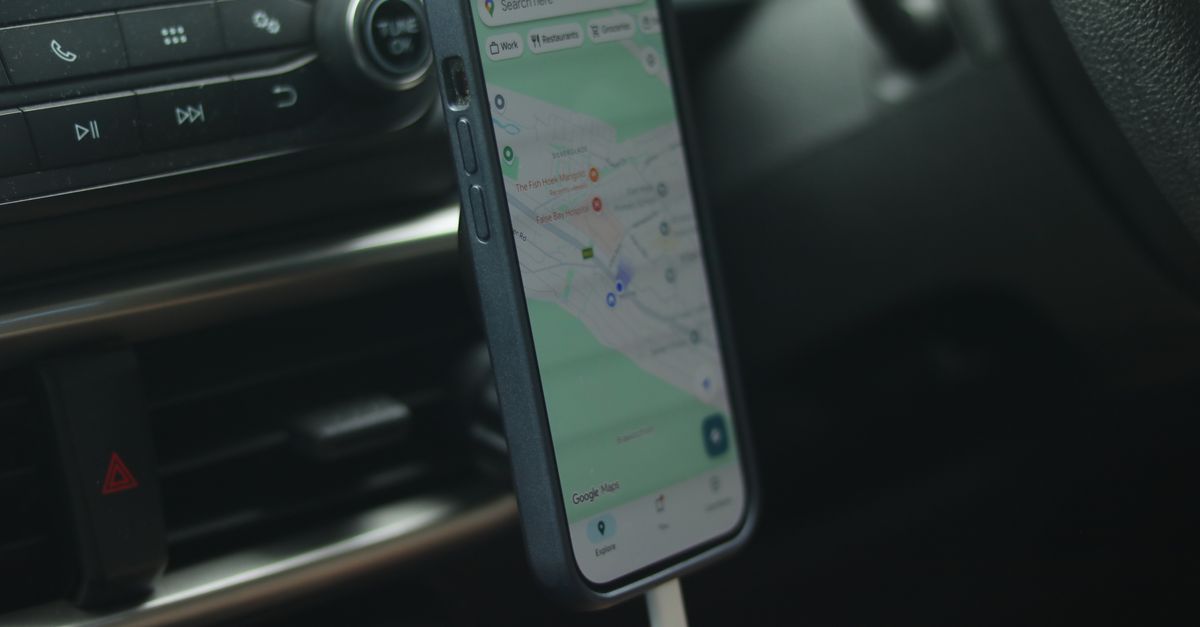
For many travellers the map is the app they'd least like to lose, and happily it's one of the lighter users of data. Knowing what actually costs data, and having an offline backup ready, means you're never stuck on a street corner watching a loading wheel.
What actually uses data in a maps app
Your position doesn't. The blue dot comes from satellite positioning, GPS and similar systems, which works without mobile data. A data connection helps the phone pin you down faster, but your location itself isn't downloaded.
What does use data:
- Map tiles: the map itself, loaded as you pan and zoom into new areas.
- Search: looking up addresses, restaurants or the nearest pharmacy.
- Live traffic and rerouting while you drive.
- Public transport times and live departures.
- Satellite view, 3D buildings and street-level imagery, which are noticeably heavier than the standard map.
- Photos and reviews of places.
How much data does navigation use?
Compared with video or social media, maps are light. A traveller who mostly uses maps and chat apps falls into the light-use bracket of roughly 1 GB a week. Within that, usage swings with how you use the app: a few walking look-ups a day use far less than a full day of driving with live traffic and satellite view switched on.
An offline map lowers the figure further. Many apps draw on the downloaded map even while you're connected, so only live information, such as traffic and search results, has to come over the network.
Get your Italy eSIM in 30 seconds
Instant delivery, 4G/5G speeds, no roaming bills.
Offline maps: your safety net
An offline map is a downloaded section of map that works with no connection at all. Set them up at home, on Wi-Fi:
- 1Open your maps app and search for the city or region you're visiting.
- 2In Google Maps, tap your profile picture, then Offline maps, then Select your own map, and adjust the box to cover the area. In Apple Maps, tap your profile picture or initials, then Offline Maps, then Download New Map.
- 3Download an area for every stop, plus the roads between them if you're driving.
- 4Let the downloads refresh on Wi-Fi during the trip, as offline areas can expire or go out of date if they're left too long.
Know the limits, too. Offline maps can't show live traffic, current public transport times or up-to-date opening hours, and in some apps offline directions are limited to driving, without walking or public transport routes. Think of them as a backup rather than a replacement.
Transit, taxis and ride-hailing need live data
Some of the most useful travel apps simply don't work offline:
- Ride-hailing apps need data to set your pickup point, match you with a driver and show the car approaching.
- Public transport apps use data for live departures, delays and platform changes. Screenshot tickets and key routes in case the connection drops.
- Rail and bus booking apps often need a connection to buy or update tickets.
- Sharing your live location with companions needs data on your side.
This is where a travel eSIM earns its place: the moment you step outside the terminal, these apps want a connection. A HelloSIM eSIM installed before the trip connects once you arrive, so they work from the kerb rather than from the nearest café with Wi-Fi.
Get your North America eSIM in 30 seconds
Instant delivery, 4G/5G speeds, no roaming bills.
Small habits for exploring a new city
A few minutes of preparation each morning makes a day of wandering easier on both your data and your nerves:
- Save places in advance. Starring or saving your hotel, restaurants and sights makes them quick to find again, and many apps show saved places on offline maps too.
- Look up the day's routes on Wi-Fi. Check the walk or the public transport route over breakfast, so you already know roughly where you're heading.
- Screenshot the essentials. An address, a booking reference or the right station exit costs nothing to look at later as an image.
- Keep the address in the local script where the alphabet differs from yours, so you can show it to a taxi driver if an app lets you down.
Battery: the limit nobody plans for
Navigation keeps the screen on and the location service busy, which can drain a battery quickly, especially in a car mount in the sun. A few habits help:
- carry a power bank on walking days and a car charger on driving days;
- lower the screen brightness and rely on voice guidance with the screen dimmed;
- leave satellite and 3D views off when you don't need them;
- on long stretches with weak signal, the phone works harder to stay connected, so consider airplane mode with an offline map; on most phones satellite positioning keeps working.
Why live data still matters
Offline maps show you where things are. Live data tells you what's happening: road closures, traffic jams, a metro line shut for works, a museum that's closed today. When you're driving between towns or relying on public transport in a city you don't know, a working data line turns the map from a picture into a guide.
It also makes recovering from mistakes easier. Miss a turning and the app reroutes you straight away; take the wrong bus and live departures show you the quickest way back.
A simple setup for a navigation-heavy trip
- 1Download offline maps for every stop while you're on home Wi-Fi.
- 2Install your travel eSIM at home, using the QR code emailed to you after purchase.
- 3Install the ride-hailing and transit apps you'll need, and sign in to them before you fly.
- 4On arrival, set the eSIM as your mobile data line and turn on Data Roaming for that line only.
- 5Pack a power bank or a car charger.
- 6Check your usage now and then, and add a top-up to the same eSIM if you need more.
Get your Latin America eSIM in 30 seconds
Instant delivery, 4G/5G speeds, no roaming bills.