
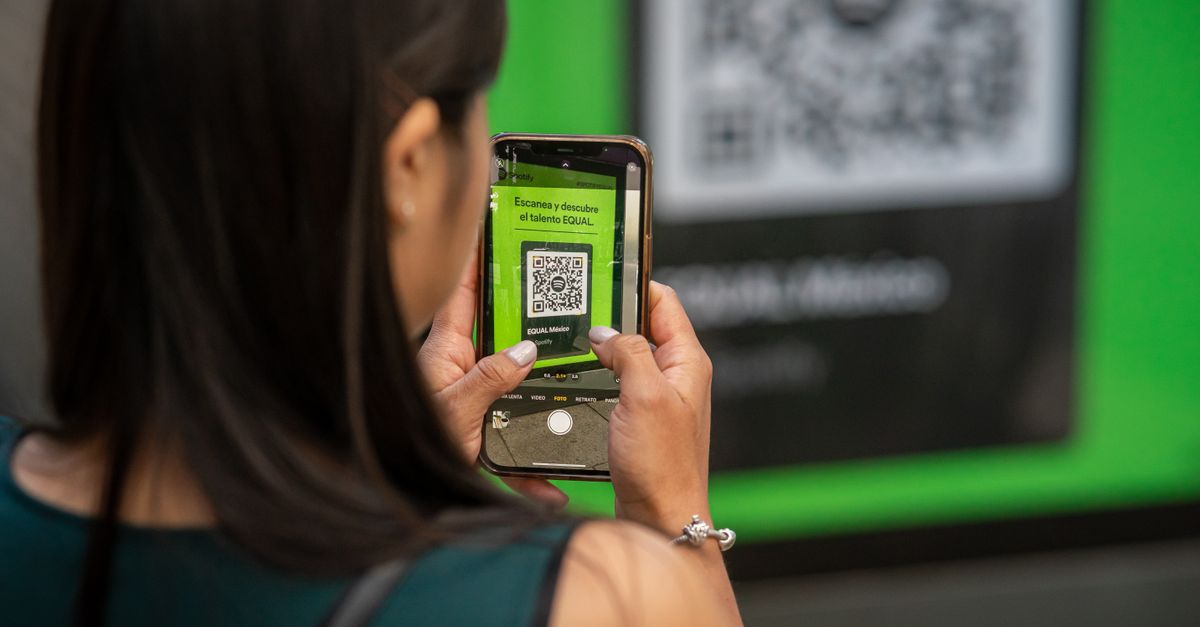
The QR code is the one part of an eSIM you actually hold, even if only on a screen. It looks like any other QR code, but it behaves more like a key: it is meant to be used once, by one phone, and anyone who has it could try to use it first.
Here is what is inside that square, how to scan it smoothly, what to do when you only have one device, and how to keep it out of the wrong hands.
What an eSIM QR code actually contains
The QR code does not contain your data plan. It holds instructions telling your phone where to download it from. Specifically, it encodes two things:
- The SM-DP+ address: the address of the secure server that holds your eSIM profile.
- The activation code: a unique code that identifies your particular eSIM on that server.
When you scan, your phone contacts the server, presents the code and downloads the eSIM profile. That is why you need an internet connection, ideally Wi-Fi, while installing, and why the same two pieces of information can be typed in by hand instead of scanned.
Where your HelloSIM QR code comes from
After you pay, the QR code is sent by email straight away to the address you used at checkout. You can check out as a guest with just an email address, so make sure it is one you can open on the spot.
The same QR code is also kept in your HelloSIM account and the HelloSIM app, so you are not dependent on finding the email again. If the message does not show up in your inbox, look in your spam or promotions folder before anything else.
The email also contains the SM-DP+ address and the activation code in plain text for manual installation.
Scanning: getting round the one-screen problem
Your phone's camera cannot scan a code shown on its own display, so plan ahead:
- 1Use a second screen. Open the email or your account on a laptop, tablet or someone else's phone. This is the easiest option.
- 2Print it. A printout works just as well, as long as it stays somewhere private.
- 3Start the scan from Settings. On iPhone, go to Settings → Mobile Service → Add eSIM → Use QR Code. On Android, open your SIM settings, for example Network & internet → SIMs or Connections → SIM manager, and choose to add an eSIM.
- 4Frame it well. Fill most of the camera view with the code, avoid glare from overhead lights, and turn the screen brightness up if scanning from a laptop.
- 5Confirm and wait. Stay on Wi-Fi with the screen on until the download finishes.
Do this at home before your trip. Validity only starts when the eSIM first connects to a network at your destination, so installing early costs nothing and leaves time to solve any problems.
Get your Japan eSIM in 30 seconds
Instant delivery, 4G/5G speeds, no roaming bills.
Manual installation when scanning is not possible
If you only have your phone with you, or the code simply will not scan, use the details from the email:
- iPhone: on the QR camera screen, tap Enter Details Manually, then fill in the SM-DP+ address and the activation code.
- Android: on the scanning screen, look for an option to enter the code yourself. Some phones ask for the two details in separate boxes; others offer one box for a combined code, which normally starts with LPA:1$ and joins the server address and the activation code with another $ sign.
Copy and paste wherever you can. A single wrong or missing character is enough to make the installation fail, and spaces copied by accident at the start or end are a common culprit.
Install once, and think twice before deleting
Treat your eSIM QR code as single-use. Once it has installed the eSIM on a phone, it has done its job, and scanning it again generally will not install a second copy. One eSIM is installed on one phone.
That has two practical consequences:
- Do not delete the eSIM to "start again" if something looks wrong. A deleted eSIM usually cannot be restored from the same code. Contact support first.
- Install it on the phone you will travel with. If you are changing phones before the trip, get in touch with support before installing.
After installation you do not need the QR code to use the eSIM, or to top it up. Extra data is added to the same eSIM from the Check / Top up page, your account or the HelloSIM app, without scanning anything again.
Keep your QR code private
Because the code can install your eSIM on any compatible phone, treat it like a ticket with your name on it:
- Do not post it on social media or in group chats, even as a "look what I bought" screenshot.
- Be careful with screenshots that sync to shared photo albums.
- Do not forward the email unless you mean the recipient to install it.
- Shred or throw away printouts once the eSIM is installed.
If you think someone else has seen your code before you installed it, contact support straight away.
When the QR code will not work
Most failures have simple causes:
- No internet during installation: connect to Wi-Fi and try again.
- Blurry or glaring image: increase screen brightness, tilt to remove reflections, or print the code.
- The code has already been used: check whether the eSIM is already listed in your mobile settings; it may have installed on the first attempt.
- The phone is carrier-locked: a locked phone will refuse eSIMs from other providers. Ask your carrier to unlock it.
- The phone does not support eSIM: if there is no option to add an eSIM in Settings, the phone, or that regional version of it, is not compatible.
If none of these fits, email [email protected] or use the live chat in the HelloSIM app. Emails are answered within 24 hours, so sort out the installation at home rather than at arrivals.
Get your Asia Pacific eSIM in 30 seconds
Instant delivery, 4G/5G speeds, no roaming bills.