
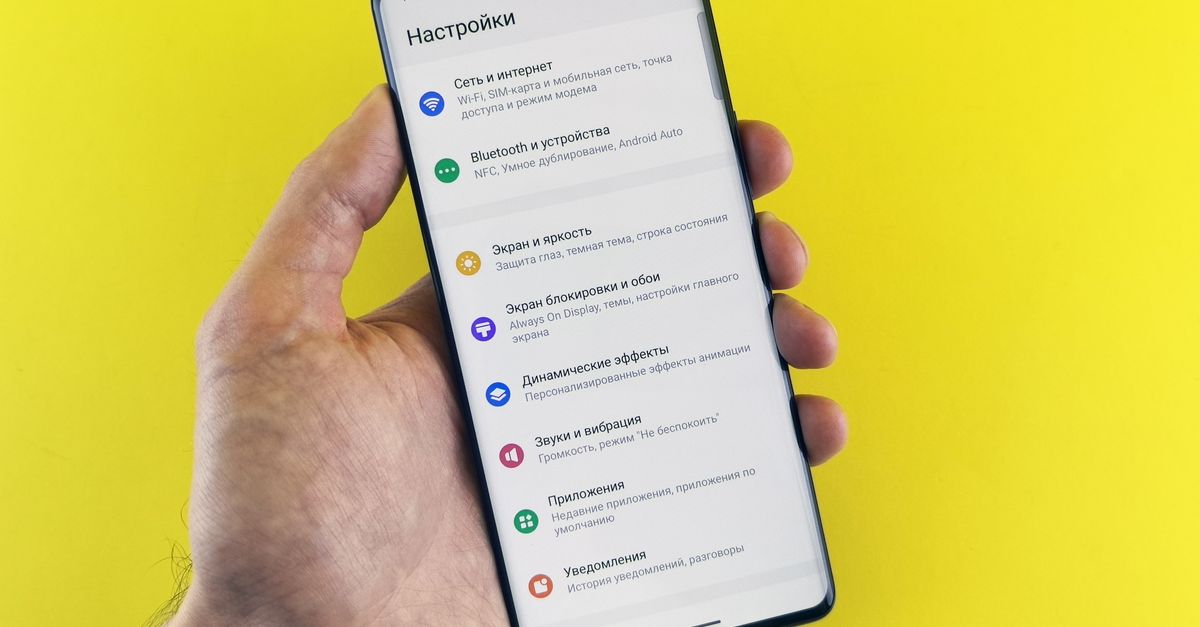
Android gives phone makers freedom to design their own settings menus, which is great for choice and less great when you are hunting for the eSIM option. Google's Pixel phones keep things close to standard Android, so this guide starts there and then shows how to find the same settings on other Android brands.
Whatever phone you have, the plan is the same: install the eSIM at home over Wi-Fi, keep your own SIM for calls and texts, and move your data to the eSIM when you arrive.
Before you begin
- eSIM support: Google Pixel 3 and newer models support eSIM, as do many other recent Android phones. The surest test is whether your SIM settings offer to add or download an eSIM.
- Carrier unlock: the phone must accept SIMs from other providers. If it came from a carrier, check with them.
- Software updates: install any pending system update first, so the menus match more closely.
- Wi-Fi and the QR code: the eSIM downloads over the internet, and the camera cannot scan the phone's own screen. Have the QR code open on another device or printed out.
Your HelloSIM QR code is emailed straight away after payment and is also stored in your HelloSIM account, so you can open it on a laptop whenever you are ready.
Google Pixel: add the eSIM step by step
- 1Open Settings → Network & internet → SIMs.
- 2Tap Add SIM (shown as a plus sign or Add eSIM on some versions).
- 3If the phone asks whether you want to download a SIM instead, confirm and tap Next.
- 4Scan the QR code when the camera opens and hold it steady until it is read.
- 5Confirm the download and wait for it to complete, staying on Wi-Fi.
- 6When it finishes, the new SIM appears in the SIMs list. Tap it and give it a recognisable name, such as "Travel".
No QR scanner handy?
On the scanning screen, look for a link such as Need help? that leads to an option to enter the code manually. You will need the SM-DP+ address and activation code from your HelloSIM email. If your phone shows just one box, it usually wants both details joined in the standard format: LPA:1$, the SM-DP+ address, a $ sign, then the activation code. Pasting avoids the typos that most often break a manual install.
Get your Italy eSIM in 30 seconds
Instant delivery, 4G/5G speeds, no roaming bills.
Other Android phones: where to look
Most Android brands place the eSIM option somewhere in their mobile network settings, but the menu names vary. You may see wording such as:
- Connections → SIM manager
- Mobile network → SIM cards or SIM cards & mobile networks
- Dual SIM & mobile network
- Mobile network → eSIM or Manage eSIM
The fastest route on any Android phone is the search bar at the top of Settings. Type "eSIM" first, then "SIM" if nothing appears. Once you find the right screen, the steps are the same as on a Pixel: add an eSIM, scan the code or enter it manually, then confirm the download.
If none of these menus offers an eSIM option, your phone, or that particular regional version of it, probably does not support eSIM.
Set data, calls and texts preferences
A HelloSIM eSIM is data-only, so think of the setup as two jobs: your home SIM keeps your number for calls and texts, and the eSIM provides data.
On a Pixel, go to Settings → Network & internet → SIMs:
- Set Calls preference and SMS preference to your home SIM.
- Keep Mobile data on your home SIM for now, while you are still at home.
- If your phone offers to switch mobile data automatically between SIMs, turn that off, so it cannot fall back to your home SIM's data abroad.
Other Android phones have the same choices, often under labels like preferred SIM, default SIM or data SIM.
Until you travel, you can switch the eSIM line off in its settings. "No service" on it at home is normal.
On arrival: switch data and roaming
As soon as you land:
- 1Open Settings → Network & internet → SIMs and switch the HelloSIM line on.
- 2Tap the HelloSIM line and turn on Mobile data. When asked, confirm you want to use it for data.
- 3On the same screen, turn on Roaming. The eSIM needs it to connect to local networks, and it does not cost anything extra because the data is prepaid.
- 4Go back, tap your home SIM and make sure Roaming is off.
- 5Allow a short while for the phone to register on a local network.
Validity begins the first time the eSIM connects to a network at your destination. Until then, the days you paid for are untouched.
Tips and fixes for a stubborn connection
- Airplane mode on and off from quick settings is the fastest reset.
- Recheck the three settings: eSIM line on, mobile data on that line, roaming on that line.
- Restart the phone if the first two steps do not help.
- Pick a network manually: in the eSIM's settings, turn off automatic network selection and choose one of the networks listed for your destination.
- Access point names (APN): normally filled in automatically. Change them only if support sends you specific values.
- 4G or 5G: 4G/LTE is available wherever HelloSIM sells. 5G appears only where the networks listed for your destination are marked 5G and your phone supports it, so seeing 4G is not a fault.
- Do not delete the eSIM while troubleshooting. Email [email protected] instead; emails are answered within 24 hours.
When you need more data, top up the same eSIM from the Check / Top up page or your HelloSIM account, without reinstalling. Touring several countries, say across Latin America? A regional plan keeps the whole route on a single eSIM.
Get your Latin America eSIM in 30 seconds
Instant delivery, 4G/5G speeds, no roaming bills.