
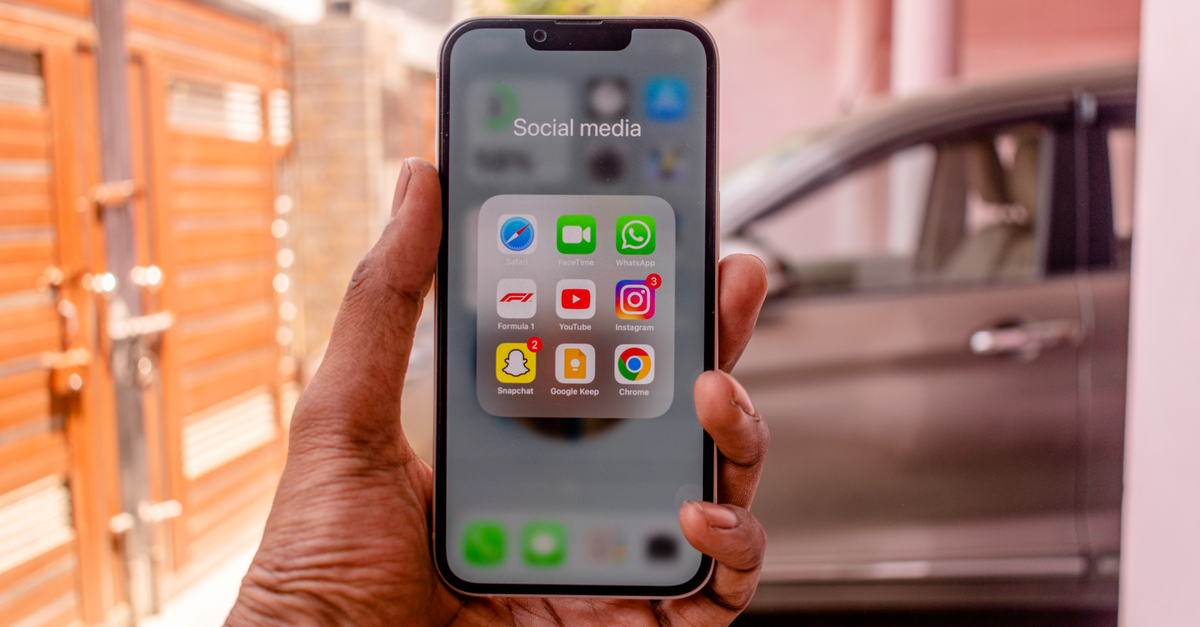
To set up eSIM for iPhone na just few taps, but di order matter. Install am for house, leave am off, and only point your data to am once you land. Do dat one, and your home number go continue to work for texts while di travel line dey handle all your data.
Dis guide go waka you through each screen one by one. Di menu names wey dey below na UK English iOS: di main menu na Mobile Service for recent versions, Mobile Data for old ones and Cellular if your iPhone dey set to US English.
Before you start: three quick checks
- 1Your iPhone support eSIM. iPhone XS, XS Max, XR and every newer model dey support am. Plenti iPhones wey dem sell for mainland China, Hong Kong and Macao dey use two physical SIM slots instead of eSIM, so check your own if na dia dem buy am.
- 2Your iPhone dey carrier-unlocked. Go Settings → General → About and scroll go Carrier Lock. "No SIM restrictions" mean say you dey good to go. Anytin else mean say your network must first unlock am.
- 3You dey on Wi-Fi and di QR code dey ready. Di QR code need to dey for different screen, like laptop, tablet or printout, becos your iPhone camera no fit scan im own screen.
E also good make you install any iOS update wey dey wait before you start, so di menus go match wetin you see for here.
Install di eSIM wit QR code
Dem dey email your HelloSIM QR code to you sharp sharp afta payment, and e also dey inside your HelloSIM account and di HelloSIM app. Open am for anoda screen, then for your iPhone:
- 1Open Settings → Mobile Service.
- 2Tap Add eSIM.
- 3Choose Use QR Code.
- 4Point di camera to di QR code and hold am steady until e recognise am.
- 5Tap Continue and wait while di eSIM dey download. Keep di screen on and stay on Wi-Fi.
When di download finish, iOS go move go labelling of your lines, wey we explain below. No delete and reinstall di eSIM if sometin look somehow for dis stage; QR code na usually for one-time use, so contact support instead.
Install by hand wit SM-DP+ address and activation code
If you no fit scan, for example becos na only your iPhone dey wit you, type di details by hand:
- 1Go Settings → Mobile Service → Add eSIM → Use QR Code.
- 2Tap Enter Details Manually for di bottom of di camera screen.
- 3Type or paste di SM-DP+ address from your HelloSIM email.
- 4Type or paste di activation code from di same email.
- 5Tap Next and allow di eSIM to download.
To copy and paste safe pass to type, becos only one wrong character fit make di install fail.
Get your United States eSIM for 30 seconds
Sharp-sharp delivery, 4G/5G speed, no roaming bill.
Give your lines name and choose di defaults
Immediately afta installation, iOS go ask you some questions. See how to answer dem for data-only travel eSIM.
Labels
Dem go ask you to name each line. Choose sometin wey clear like Travel, or create custom label like HelloSIM, and keep your home number as Primary or Personal. Clear labels go save you from confusion later.
Default line, iMessage and FaceTime
Keep your home line as di default for calls and texts, and keep iMessage and FaceTime on your usual number. HelloSIM eSIMs na data-only, so no number dey for di travel line wey you fit call or text from.
Mobile data
For now, leave mobile data on your home line if you still dey house. You go switch am when you land. While you dey dis screen, tink about to off Allow Mobile Data Switching, so your iPhone no go fall back to your home line data abroad.
Once you don finish, you fit off di travel line until your trip: tap am under Mobile Service and off Turn On This Line. If e show "No Service" for house, dat one normal.
When you land: on am and allow roaming
When you land, before you comot from airport:
- 1Go Settings → Mobile Service, tap your travel line and on Turn On This Line.
- 2Go back, tap Mobile Data and select di travel line.
- 3Tap di travel line again and on Data Roaming. Di eSIM need am to connect to local networks, and e no cost anytin extra becos di data na prepaid.
- 4Tap your home line and make sure say Data Roaming dey off. Keep di line on if you want receive texts like bank codes.
- 5Give am small time to find network. Di plan validity dey start di first time wey di eSIM connect for where you dey go.
Troubleshooting when e no gree connect
Most connection wahala na settings, no be fault. Follow dis ones one by one:
- On and off Flight Mode: on am, wait few seconds, then off am again.
- Check di basics: di travel line dey on, you don select am for Mobile Data, and Data Roaming dey on for dat line.
- Restart your iPhone. E dey work well pass how you go expect afta long flight.
- Pick network by hand: tap di travel line, open Network Selection, off Automatic and choose one of di networks wey dem list for your destination.
- No touch di APN: di Mobile Data Network settings dey normally fill by demself. Only change dem if support give you specific values.
- Check 4G or 5G: 4G/LTE dey everywhere wey HelloSIM dey sell; 5G go only show where di listed networks for dat destination get 5G mark and your iPhone support am.
If you still dey offline, email [email protected] or open di live chat inside di HelloSIM app. Dem dey answer emails within 24 hours. No delete di eSIM while you dey troubleshoot.
Top-up and afta di trip
Data dey finish? Add data to di same eSIM from di Check / Top up page, your HelloSIM account or di HelloSIM app. Notin need reinstall.
When you don reach house, switch Mobile Data back to your home line, off Data Roaming for di travel line and off di line. Keep di eSIM installed for now if you fit top am up again later.
Get your Europe eSIM for 30 seconds
Sharp-sharp delivery, 4G/5G speed, no roaming bill.