
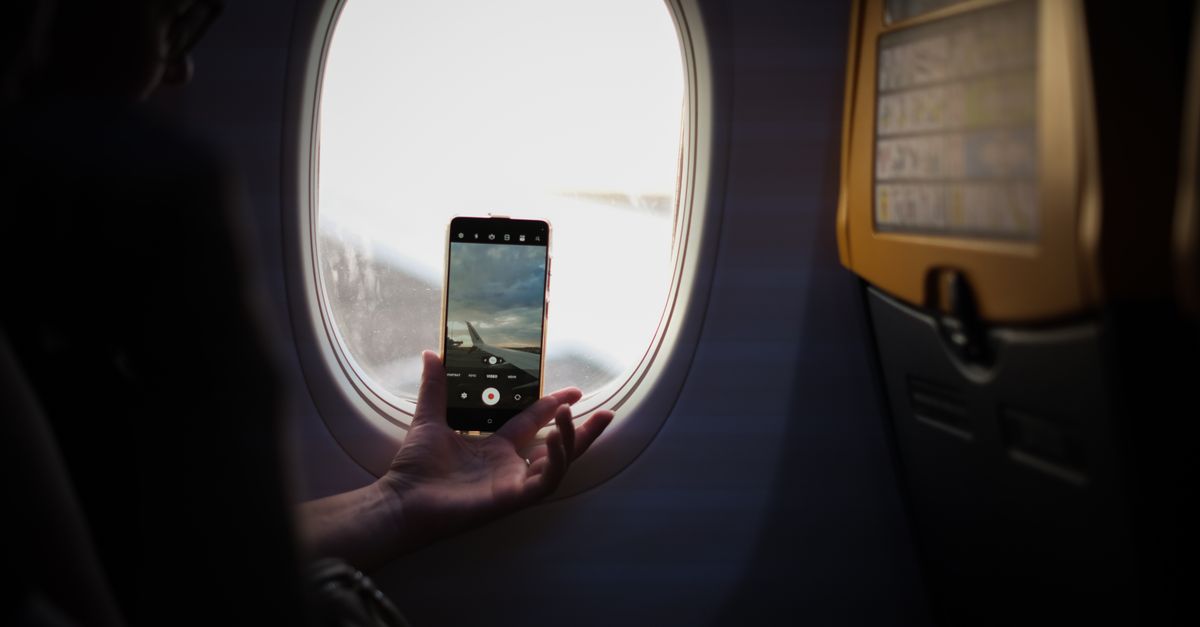
Di seatbelt sign go off, half of di pipo for di plane go carry dia phones at once, and before you know am some passengers don dey message house while oda ones dey look "No Service". Di difference no too be luck. E dey usually come down to few settings and di order wey you take change dem.
Dis na stage-by-stage plan for your first hour for ground with travel eSIM, from di aircraft door reach di hotel lobby.
Before di doors open: wetin you suppose don do already
Your first hour go only easy if di groundwork happen for house. Di best way na say, before you fly:
- Your travel eSIM don already install, on home Wi-Fi with di QR code from your order email. To install am no dey use any day; di plan go start to count when di eSIM first connect to network for your destination.
- Both lines get clear labels, like "Home" and "Travel", so you no go mix dem up for Settings.
- Data roaming dey off for your home line.
- You get offline map of di area between di airport and where you go stay, with di address wey you save for place wey you fit open without signal.
- You sabi where you go find di installation details again: di email, your HelloSIM account or di HelloSIM app.
If di eSIM never install, e no be disaster. You go need Wi-Fi to download am, and plenty airports dey offer free Wi-Fi; e just go stress you pass with queue for your back.
Get your United States eSIM for 30 seconds
Sharp-sharp delivery, 4G/5G speed, no roaming bill.
You still dey your seat: on di correct line
Once dem allow you to use your phone, follow dis ones one by one:
- 1Off aeroplane mode.
- 2Make sure say di travel eSIM line dey on. For iPhone: Settings → Mobile Data → tap di line → Turn On This Line. For Android: Settings → Network & internet → SIMs, or Connections → SIM manager for Samsung.
- 3Choose di travel line for mobile data. For iPhone: Settings → Mobile Data → Mobile Data. For Android: di mobile data or preferred SIM option for di same SIM menu.
- 4On Data Roaming for di travel eSIM line. Di eSIM dey run on local partner networks, so dis switch must dey on; becos di data na prepaid, e no dey add any charge.
- 5Check again say data roaming still dey off for your home line. For iPhone, also leave Allow Mobile Data Switching off, so di phone no go fit fall back on your home line data.
Your home line fit stay on for normal calls and texts. Just keep im data roaming off.
As you dey waka go passport control: confirm say you dey online
Give di phone small time to find network. Signs say e don work:
- Local network name go show near your travel line for Settings or for di Control Centre or notification shade.
- 4G, LTE or 5G sign go show for di status bar. 4G/LTE na wetin you go see pass; 5G go only show where di networks wey dem list for dat destination support am and your phone support am too.
- Web page go really load. Open sometin fresh, like news site, no be page wey your phone fit don save.
Dis first connection na also when your plan validity go start, so im days go dey count from now, no be from di day wey you buy am.
Arrivals hall: how to comot from di airport
Na here connection wey dey work go show im value.
- Ride-hailing and taxi apps need live data to set your pickup point and show di driver as e dey come. If app send verification text, e go go to your usual number, wey still dey work becos your home SIM still dey di phone. Ask your home network provider how dem dey charge for texts wey enter when you dey roam if you no sure.
- Public transport apps dey use data for live departures and delays. Screenshot any tickets wey you don buy before, in case di app need connection to show dem.
- Your maps app dey fill wetin di offline map no fit do: live traffic, opening hours for today and which exit go take you reach di taxi rank.
For road: message house and check how tins dey
Once you don start to move:
- Send message go house on WhatsApp, iMessage, Telegram or any app wey your family dey use. Your WhatsApp account still dey linked to your usual number, so your chats and contacts go look exactly as dem be before you comot.
- If you prefer to talk, voice and video calls dey work on data for di same apps. Quick voice call dey use small data compared to video call.
- Look your usage small. For iPhone, Settings → Mobile Data dey show di data wey each line don use, and if you reset di counter when you land, e go easy to track di trip. Your HelloSIM account and app dey show how much data remain, and you fit add top-up to di same eSIM later if you need am.
- If you dey separate from di pipo wey you travel with for di airport, share your live location with dem.
Get your Japan eSIM for 30 seconds
Sharp-sharp delivery, 4G/5G speed, no roaming bill.
No signal? Follow dis list
If di travel line still dey show no service after some minutes, try dis ones before any oda tin:
- 1Check say di travel line dey on and say you don select am for mobile data.
- 2Check say Data Roaming dey on for di travel line. Na dis step pipo dey miss pass.
- 3On aeroplane mode, wait few seconds, then off am again.
- 4Restart di phone.
- 5Open network selection for di travel line, off automatic selection, wait for di list and pick one of di networks wey dem list for your destination.
- 6No touch di APN unless support tell you make you change am.
E still no work? Connect to di airport Wi-Fi and contact HelloSIM support by email for [email protected] or through di live chat for di HelloSIM app. Get di email address wey you use for checkout ready. And no delete di eSIM while you dey try fix am: di QR code na for one installation, so if you remove di profile, e fit leave you without easy way to put am back.
Di one-minute version
- For house: install di eSIM, label both lines, off data roaming for di home line, save offline map.
- After you land: aeroplane mode off, travel line on, set travel line for mobile data, Data Roaming on for di travel line only.
- Check: network name, 4G or 5G sign, page wey dey load.
- Then: book your ride, message house, look your usage small.
Get your Global eSIM for 30 seconds
Sharp-sharp delivery, 4G/5G speed, no roaming bill.